

To use Flex Pitch in Logic Pro, double-click your vocal region to open the Audio Track Editor, click the Show/Hide Flex button, and choose Flex Pitch from the Flex Mode pop-up menu. Logic analyzes the vocal and shows each sung note as a bar on a piano-roll grid. Drag a note up or down to change its pitch, or use the small hotspots on each note to adjust drift, vibrato and fine tuning.
Flex Pitch is built into Logic, so you do not need anything extra to tune a vocal. The skill is knowing how much to touch. This guide walks through turning it on, fixing notes one at a time, using the automatic Pitch Correction slider without flattening the performance, and recognizing when a note needs a new take instead of an edit.
What is Flex Pitch in Logic Pro?
Flex Pitch is Logic’s built-in tool for editing the pitch of monophonic audio, meaning one note at a time: a lead vocal, a sax line, a bass part. Logic detects the notes in a recording and displays them, in Apple’s words, “like notes in the Piano Roll Editor.” You can then change a note’s pitch, move it in time, change its length, split it, or merge it with the next note.
It sits alongside Flex Time, which edits timing. Both are part of the Flex system described in Apple’s Logic Pro User Guide.
Flex Pitch is not a magic “make it sound pro” switch. It works best on a good take with a few sour notes. It cannot turn a shaky performance into a confident one, and it does not do chords. Apple notes that pitch quantizing “can produce accurate results only for single-note (monophonic) audio regions.”
How do you turn Flex Pitch on?
There are two places to do it. The Audio Track Editor is the easiest place to start.
In the Audio Track Editor (recommended)
- Open the editor. Double-click the vocal region. You can also select the track and choose View > Show Editor.
- Show Flex. Click the Show/Hide Flex button in the Audio Track Editor’s menu bar.
- Choose Flex Pitch. Pick Flex Pitch from the Flex Mode pop-up menu in the same menu bar.
Logic analyzes the audio and draws the detected notes over the waveform. Apple points out that working in the Audio Track Editor lets you keep Flex mode off in the main Tracks area, so that view stays clear for automation and arranging. The editor also has two extra tools, Volume and Vibrato, that are not available in the Tracks area.
In the Tracks area
You can also show Flex in the Tracks area and choose Flex Pitch from the Flex Mode pop-up menu in the track header. Then zoom in on the track to see the notes. This is handy for quick fixes, but the Audio Track Editor is roomier for real tuning work.
What if notes are not showing?
If you turned on Flex Pitch and do not see clear note bars, check these:
- Is the region monophonic? Chords, doubled vocals bounced together, or a vocal with heavy guitar bleed confuse the detection. Flex Pitch needs one clear voice.
- Are you zoomed in enough? In the Tracks area, notes only appear once you zoom in.
- Did you choose the right mode? Flex Time shows transient markers, not notes. Make sure the Flex Mode menu says Flex Pitch.
- Is the take very noisy or reverb-heavy? Detection works best on a dry, clean recording. Effects on the channel do not affect it, but reverb recorded into the take does.
How do you tune vocals in Logic Pro with Flex Pitch?
Work through the vocal phrase by phrase. Fix the notes you can actually hear as wrong and leave the rest alone.
Step 1: Listen before you touch anything
Play the whole vocal against the music once. Note the spots that bother you. Do not tune by eye. A note that looks a little off the center line can sound completely fine, especially with vibrato or a deliberate scoop into the note.
Step 2: Read the note display
Each note bar sits on a pitch row. A thin line through it shows the actual pitch curve of what was sung. When a note is noticeably sharp or flat, Logic shows it offset from the row’s center. The pitch curve shows whether the problem is the whole note or just the start or end.
Step 3: Fix pitch with drag and hotspots
The basic edits, from Apple’s guide:
- Change a note’s pitch: drag the note vertically.
- Move a note in time: drag it horizontally.
- Change its length: drag the left or right edge.
- Split a note: click it with the Scissors tool.
- Merge notes: select them and choose Edit > Bounce or Join > Join (Command-J), or click them with the Join tool.
The finer control is in the six hotspots that appear on a selected note:
- Upper-left: pitch drift at the start of the note (the scoop in).
- Upper-middle: vibrato depth.
- Upper-right: pitch drift at the end (the fall off).
- Lower-left: gain.
- Lower-middle: fine pitch.
- Lower-right: formant shift.
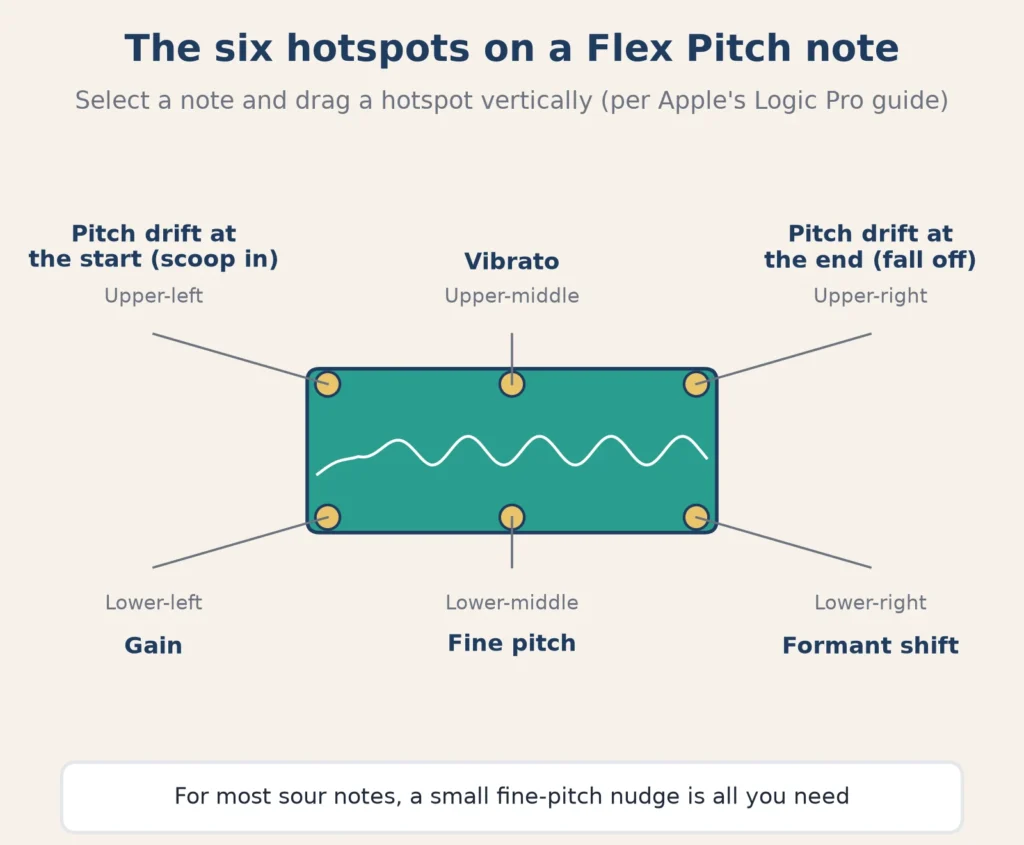
For most sour notes, fine pitch is all you need. Dragging a note a full semitone is a big move and can sound processed. Nudging fine pitch until the note sits right usually sounds natural.
When the middle of a note is fine but it starts flat, adjust the start drift instead of moving the whole note. Singers naturally scoop into notes, and keeping some of that keeps the vocal human.
Step 4: Use Pitch Correction lightly, if at all
The Audio Track Editor has a Pitch Correction slider. Select some notes and drag it right to pull them toward the nearest pitch, or left to reduce the effect. Scale Quantize pop-up menus let you snap to a key and scale rather than all 12 notes.
This is fast, but it is also where vocals start to sound robotic. If you use it:
- Apply it to a phrase, not the whole song at once.
- Keep the amount low and listen in context.
- Set the Scale Quantize key to the song’s key so notes do not snap to wrong pitches.
Step 5: Check formants on big moves
If you have to move a note more than a semitone or so, listen for a “chipmunk” or “muffled” change in tone. The formant hotspot can bring the character back. Better still, avoid big moves and re-record the line.
Step 6: Listen in the mix, then walk away
Solo listening exaggerates every flaw. Play the tuned vocal with the band, at a normal volume, and only fix what still stands out. Take a break and listen again later with fresh ears.
A worked example: one sour note in a chorus
Say the last word of your chorus, a held note on “home,” sounds a little flat for the first half-second and then settles. Here is the light-touch fix:
- Open the vocal in the Audio Track Editor with Flex Pitch on and find the note for “home.”
- Look at the pitch curve. If it starts below the row and rises to center, the note is mostly fine and only the entry is flat.
- Select the note and drag the upper-left hotspot up a little. That reduces the scoop without removing it.
- Play it in context. If the whole note still sounds slightly low, nudge the lower-middle fine pitch hotspot up a touch.
- Leave the vibrato alone unless it is obviously wobbly.
That is two small moves on one note, and the line sounds right without sounding edited. Most vocal tuning should look like this.
When is a light correction enough, and when should you re-record?
This is the real question for anyone recording themselves. Flex Pitch is excellent for:
- A note or two that is a little sharp or flat in an otherwise great take.
- A held note that drifts at the end.
- Tightening a harmony against the lead.
It is the wrong tool for:
- Whole phrases that are off. If most notes in a line need moving, the take has a pitch problem. Sing it again.
- Notes that are a semitone or more wrong. Moving them that far often sounds processed.
- Weak, breathy or uncertain delivery. Tuning fixes pitch, not confidence or tone.
- Timing and pitch problems together. You will spend longer editing than singing.
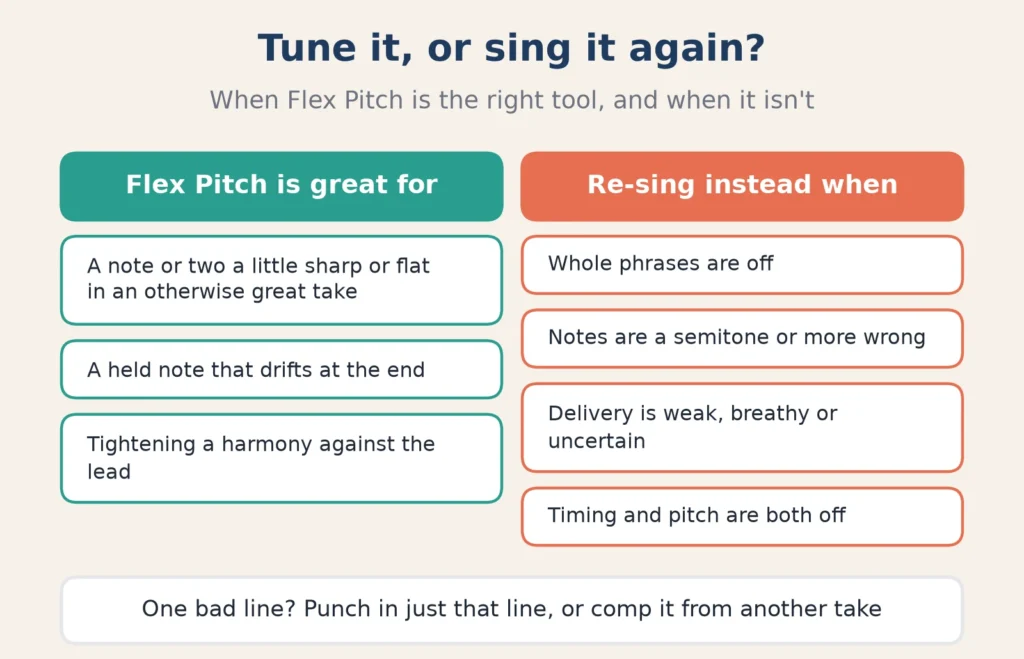
Re-singing usually beats heavy editing. If the problem is a single line, punch in a new version of just that line. If you recorded several full takes, it is often faster to build the best performance from them first, as covered in our guide on how to comp vocals, and then tune only what is left. Comp first, tune second. Tuning takes you will not use is wasted time.
Better takes also need less tuning. Warming up, singing to a comfortable key, and hearing yourself clearly in your headphones make a bigger difference than any editor. Our 13 tips for recording better vocals at home cover the tracking side.
Tuning harmonies and doubles
Flex Pitch is also handy on backing parts, where small pitch differences add up fast.
- Tune the lead first. Harmonies and doubles should match the lead, not a perfect grid. If the lead is slightly sharp on a note and the harmony is perfect, the pair can still sound wrong.
- Work on each part separately. Flex Pitch needs one voice per track, so keep stacked harmonies on their own tracks rather than bouncing them together first.
- Leave doubles a little loose. A doubled vocal sounds thick because of small differences between the takes. Tuning both to the same exact pitch can make them collapse into one thin voice.
- Fix the long notes. Held notes at the ends of phrases are where harmony pitch problems are most obvious.
If you are building stacks yourself, our guide on how to record harmonies with yourself covers the tracking side.
Flex Pitch vs Auto-Tune: what is the actual difference?
People use “Auto-Tune” to mean any pitch correction, but the two usually work differently.
- Flex Pitch is a graphical, note-by-note editor built into Logic. You see each note and decide what changes. It is mostly used for transparent, invisible correction.
- Auto-Tune, as most people mean it, is real-time automatic correction. Pushed hard, it creates the obvious stepped, robotic sound heard on many pop and hip-hop records.
You can get a stepped effect from Flex Pitch by pushing Pitch Correction all the way, but that is not what it is designed for. For the history and the creative use of the audible effect, see our article on Auto-Tune everywhere.
Can you turn Flex Pitch into MIDI?
Yes. Apple’s guide to creating MIDI from Flex Pitch describes it. With Flex Pitch active on the track, correct any detection errors, then choose Edit > Create MIDI Track from Flex Pitch Data. Logic creates a new software instrument track with the notes as MIDI. That is useful for doubling a vocal melody with a synth or writing out a melody you sang.
Common Flex Pitch mistakes
- Tuning by eye instead of by ear.
- Correcting every note until the vocal has no life.
- Moving notes a long way instead of re-recording.
- Tuning before comping, then throwing the tuned take away.
- Forgetting vibrato. Flattening vibrato with the hotspot can make a held note sound synthetic.
FAQ
How do I turn on flex mode in Logic?
Click the Show/Hide Flex button, then choose a mode from the Flex Mode pop-up menu. For vocals, choose Flex Pitch. You can do this in the Audio Track Editor’s menu bar or in the Tracks area.
What does Flex do in Logic Pro?
Flex lets you edit audio without re-recording it. Flex Time changes timing, and Flex Pitch changes the pitch of individual notes in monophonic audio.
Is Logic’s Flex Pitch good enough for vocals?
For transparent correction of a few notes on a solid take, yes. It is built in and handles the most common home-recording fixes well. Its limits are polyphonic material and very large pitch moves.
Is Flex Pitch editing destructive?
No. Apple notes that edits in the Audio Track Editor are non-destructive, so the original recording is kept.